


1. INTRODUCTION
Over 60% of office workers still manually retype text to change its case. They waste hours re‑typing headings, fixing accidental caps‑lock disasters, or reformatting imported data. It’s 2026, and Microsoft Word has multiple built‑in methods that let you capitalize all letters in Word instantly — without retyping a single character.
But what happens when you don’t have Word, or you need to process hundreds of text snippets at once? That’s where modern online case converters come in. In this guide, you’ll discover every reliable method, both offline and online, so you can choose the fastest, safest approach for your task.
Here’s what you’ll learn:
- The 3 native Word methods to capitalize all letters (ribbon, keyboard shortcut, font dialog).
- How to use free online case converters as a quick backup.
- A pro‑level macro that capitalizes entire documents in one click.
- Answers to the most Googled questions about changing case in Word.
- When you should avoid all caps (and what to use instead).
Bookmark this page — it’s the only Word case‑change reference you’ll ever need.
2. WHY YOU MIGHT NEED TO CAPITALIZE ALL LETTERS (AND WHEN NOT TO)
Changing text to uppercase serves several common purposes:
- Headings and titles that demand a strong visual hierarchy.
- Acronyms and abbreviations (NASA, NATO, FIFA).
- Legal or warning notices where uppercase text increases visibility.
- Fixing data imports that arrived in the wrong case.
However, never use all caps for body text. Long passages in uppercase reduce readability by up to 40% because the uniform shape of capital letters removes the ascenders and descenders our eyes use to recognize words. Moreover, all caps in digital communication is interpreted as shouting. Reserve uppercase for short, deliberate uses.
3. METHOD 1: THE RIBBON CHANGE CASE BUTTON (WINDOWS & MAC)
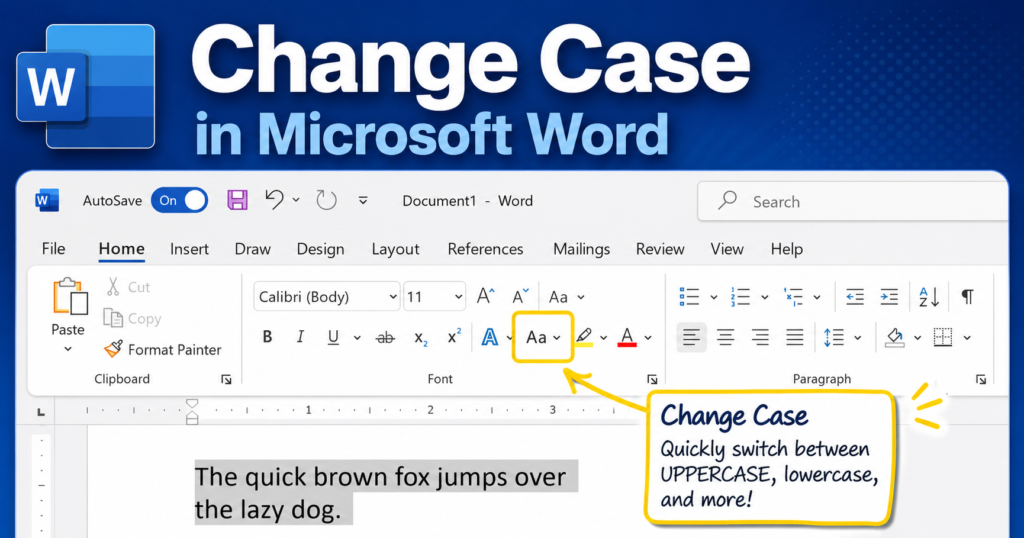
The most visible way to capitalize all letters in Word is through the Change Case button, sitting right in the Home tab ribbon.
Step‑by‑step
- Select the text you want to change.
- Click the Home tab in the ribbon.
- In the Font group, locate the Change Case icon (it reads “Aa”).
- Click the small arrow next to it to open the drop‑down menu.
- Choose UPPERCASE.
Your text instantly transforms. The same menu also offers lowercase, Capitalize Each Word, Sentence case, and tOGGLE cASE (which flips the case of every letter).
Where to find it on Mac: The ribbon layout is identical in Word for Microsoft 365 on Mac. If the classic menu is hidden, simply search “Change Case” in the Tell Me box.
4. METHOD 2: THE FASTEST KEYBOARD SHORTCUT – SHIFT+F3

If you prefer keeping your hands on the keyboard, Shift+F3 is your best friend.
- Select the text.
- Press Shift+F3 once. The text becomes lowercase.
- Press Shift+F3 again. It changes to UPPERCASE.
- Press Shift+F3 a third time. It becomes Capitalize Each Word (first letter of each word capital).
The shortcut cycles through these three states, so just keep pressing until you land on the case you want. This works identically in Word for Windows and Mac, as well as in Outlook and PowerPoint.
5. METHOD 3: USING THE FONT DIALOG BOX FOR MORE OPTIONS

For precise control — especially if you want Small caps instead of full UPPERCASE — the Font dialog is the way to go.
- Select the text.
- Press Ctrl+D (Windows) or Cmd+D (Mac) to open the Font dialog.
- Under Effects, check All caps to force everything to uppercase.
- Optionally, check Small caps to apply a smaller uppercase variant that respects the original capital/lowercase distinction.
- Click OK.
This method applies character‑level formatting, not text replacement. The underlying text remains unchanged, meaning you can uncheck “All caps” later to revert the appearance without re‑typing. That’s a big advantage when you’re experimenting with a document’s visual style.
6. METHOD 4: ONLINE CASE CONVERTERS (FREE, NO WORD REQUIRED)
What if you don’t have Word installed, or you’re on a mobile device? Online case converters fill that gap instantly. You simply paste your text, click a button, and copy the result.
Trusted free converters in 2026
- SmallSEOTools Uppercase to Lowercase – supports UPPERCASE, lowercase, Sentence case, and more.
- BulkSEOTools Letter Case Converter – good for batch processing.
- SEO Tools Centre Change Text Case Online – simple, minimal ads.
- GuestPostLinks Case Converter – also offers title case and alternating caps.
How to use them
- Visit any of the above tools.
- Paste your text into the input box.
- Click the UPPERCASE button (or equivalent).
- Copy the result and paste it back into your document.
Privacy note: Avoid pasting confidential or personally identifiable information into online converters. While reputable tools claim not to store data, it’s best to stick to the offline Word methods for sensitive content.
7. METHOD 5: AUTOMATE WITH A WORD MACRO
If you frequently need to capitalize all letters in Word for large documents, a macro can do it with one click or a keyboard shortcut.
Simple VBA macro
vbaCopyDownload
Sub MakeAllUpperCase()
    Selection.Range.Case = wdUpperCase
End Sub
How to add it:
- Press Alt+F11 to open the VBA editor.
- Insert a new module (Insert → Module).
- Paste the code.
- Close the editor.
- Run the macro from View → Macros, or assign it to a button on the Quick Access Toolbar.
Why use a macro? It converts the text casing at the document level, preserving the underlying data just like the Font dialog, but it works across entire selections with a single trigger.
8. TROUBLESHOOTING & PRO TIPS
“Shift+F3 isn’t working!”
Check if another program (like a graphics tool or screen recorder) is hijacking the shortcut. On some laptops, you may need to press Fn+Shift+F3.
“The Change Case button is greyed out.”
You likely haven’t selected any text, or you’re in a read‑only document. Switch to editing mode.
“I want to keep the original case in my document but only display it as uppercase for printing.”
Use the Font dialog’s “All caps” effect — it’s purely visual and can be toggled off.
Pro tip: Combine Find and Replace with the “Font” format setting to convert only specific words to uppercase throughout a document — perfect for standardizing brand names or acronyms.
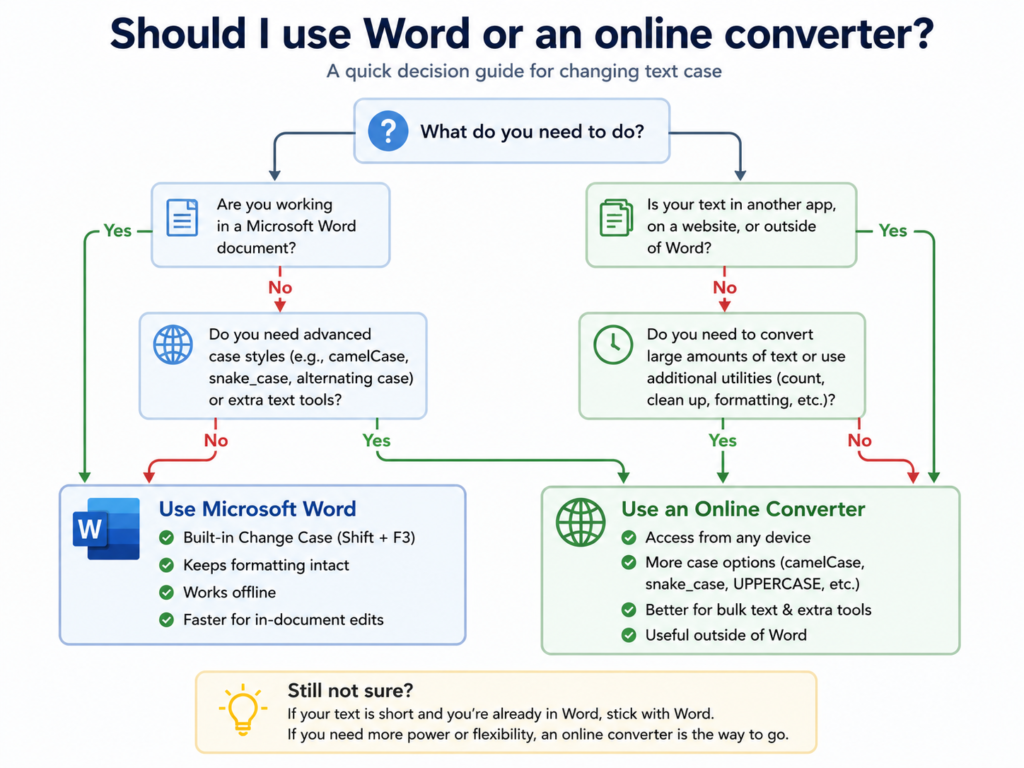
9. COMPARISON TABLE: NATIVE WORD METHODS VS. ONLINE TOOLS

| Criteria | Word (Change Case / Shift+F3) | Online Case Converter |
|---|---|---|
| Speed | Instant | Depends on internet speed and text size |
| Requires Internet | No | Yes |
| Privacy | 100% local | Risk if text is sensitive |
| Additional options | Small caps, Toggle case | Sentence case, alternating caps, title case |
| Batch processing | Yes (with macro or select‑all) | Yes (paste large chunks) |
| Platform | Windows, Mac, Word app | Any device with a browser |
10. FREQUENTLY ASKED QUESTIONS
1. What is the shortcut to capitalize all letters in Word?
Press Shift+F3 repeatedly until your selected text becomes UPPERCASE. The shortcut cycles through lowercase, UPPERCASE, and Capitalize Each Word.
2. Where is the Change Case button in Word?
It’s in the Home tab, inside the Font group. Look for the “Aa” icon with a small arrow. Click the arrow to reveal the case options.
3. How do I capitalize all letters in Word for Mac?
The methods are the same: use Shift+F3, the Change Case button on the Home tab, or the Font dialog (Cmd+D). The macOS Word ribbon matches Windows.
4. Can I change case without retyping everything?
Absolutely. Use any of the methods above — ribbon, shortcut, or dialog. No retyping is required; the case changes instantly.
5. What does “toggle case” do?
Toggle case flips the capitalization of every letter: uppercase becomes lowercase, and lowercase becomes uppercase. It’s handy for fixing text that was accidentally typed with Caps Lock on.
6. How do I convert uppercase to lowercase in Word?
Select the text, then either press Shift+F3 until it’s all lowercase, or use the Change Case button and choose lowercase. Both work instantly.
7. Is there a way to capitalize all letters automatically as I type?
Word doesn’t have a real‑time “force all caps” typing mode, but you can apply the All caps font effect (Ctrl+D) to the text you’ve already typed, or use a macro that triggers on document open.
8. Are online case converters safe for sensitive text?
They are convenient but not recommended for confidential data. Always use the offline Word methods for personal, financial, or business‑sensitive text to avoid any risk of data leakage.
9. How do I change the case of an entire document at once?
Press Ctrl+A to select all text, then use Shift+F3 or the Change Case button. For precise control over headings only, use the Navigation Pane and select all headings first.
10. What’s the difference between “All caps” and “Small caps”?
All caps makes every letter a full‑size capital. Small caps also uses uppercase letters, but letters that were originally lowercase appear slightly smaller, preserving the visual distinction while still giving an all‑caps appearance.
11. CONCLUSION
You never need to retype text just to change its case again. Whether you use the Change Case button, the Shift+F3 shortcut, the Font dialog, or a reliable online case converter, you now have five proven ways to capitalize all letters in Word — and beyond.
The three native Word methods put you in full control offline, while the online tools act as a convenient backup when you’re away from your main device. For power users, a simple macro can save even more time. Remember to use all caps sparingly and strategically; your readers’ eyes will thank you.
Bookmark this guide and run through the quickest method (Shift+F3) the next time you need a fast case fix. For more text‑formatting tips and free SEO utilities, explore our Free Online Case Converter Tool to handle batches of text without opening Word.